
There is no separate Windows or Mac build of 2fun bet. The game is an Android application, so playing it on a computer means running Android on that computer. Two routes work reliably: an Android emulator, which gives you the full app with mouse and keyboard control, or the mobile web version opened in a desktop browser, which needs no installation at all. This page walks through both, explains which one suits which situation, and lists the settings that make the difference between a smooth session and a stuttering one.
A computer is genuinely the more comfortable way to play for long sessions. The lobby has a lot of tiles, card tables are easier to read at desktop size, and a wired or Wi-Fi connection is usually steadier than mobile data — which matters enormously in crash and live-style games where a dropped frame at the wrong moment costs a round.
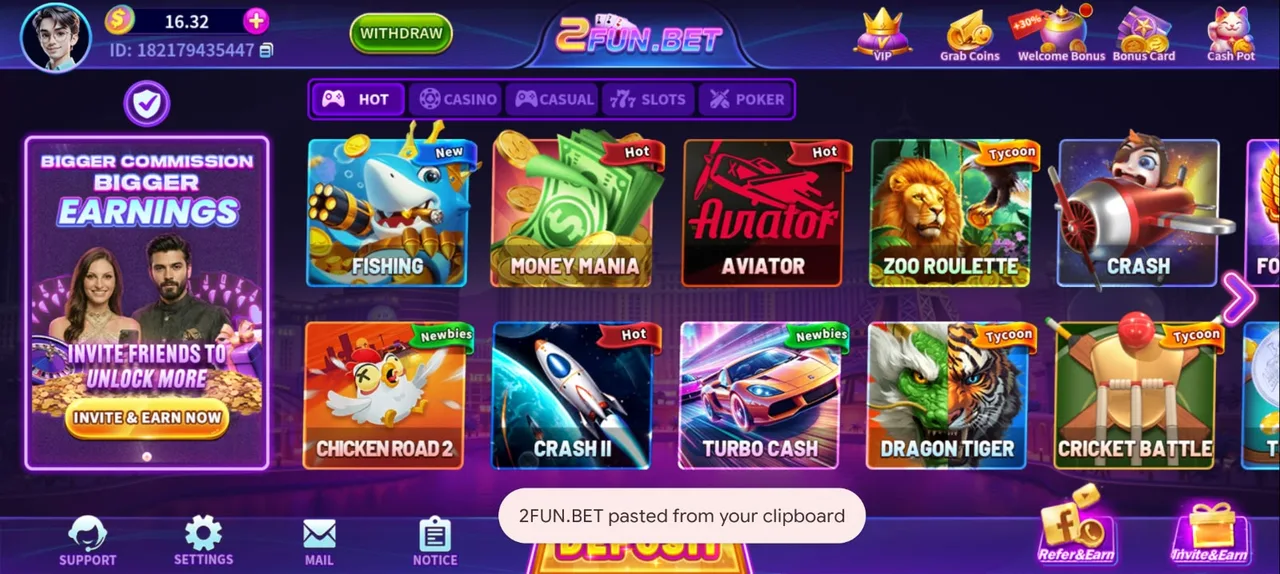
Which method should you use?
| Method | Best when | Trade-off |
|---|---|---|
| Android emulator | You want the full app, key mapping and long sessions | Needs a few GB of disk space and a reasonably modern CPU |
| Desktop browser | You are on a work laptop, a shared PC or low-spec hardware | Layout is mobile-shaped and some app-only features may be missing |
Method 1 — 2fun bet apk on an Android emulator
An emulator creates a virtual Android device inside Windows or macOS. You install the emulator once, then drop the 2fun bet apk into it just like you would install it on a phone. Popular options include BlueStacks, LDPlayer, MEmu and Nox on Windows; on Apple Silicon Macs, BlueStacks Air and similar ARM-native builds run particularly well because the Mac chip and Android share an architecture.
- 1Check that your PC can handle itAim for at least 4 GB of RAM (8 GB is comfortable), 5 GB free disk space, and virtualisation enabled in the BIOS — Intel VT-x or AMD-V. Without virtualisation an emulator runs, but slowly.
- 2Install the emulatorDownload it from the emulator vendor's own site, run the installer and let it finish the first-boot setup. Skip any bundled toolbars or extra software it offers.
- 3Get the 2fun bet apkInside the emulator, open its browser and go to the official game page using the button on this site, then download the Android file there. You can also download the apk on your PC and drag it onto the emulator window.
- 4Install the fileDouble-click the apk inside the emulator, or use its 'Install APK' button. Installation takes a few seconds and the 2fun bet icon appears on the virtual home screen.
- 5Log in and set controlsSign in with the same number you use on your phone — the account and wallet are shared. Then open the emulator's key-mapping panel and bind clicks to keys if you prefer keyboard play.
Settings that make the emulator smooth
- RAM: allocate 2–4 GB to the virtual device, never more than half your total system memory.
- CPU cores: two cores is the sweet spot for a casual gaming app; more rarely helps and can starve Windows.
- Graphics mode: try DirectX and OpenGL and keep whichever gives you a steadier frame rate — this varies by graphics card.
- Resolution: a phone-shaped portrait profile (for example 1080×1920) matches the app's design and avoids stretched menus.
- Frame rate: 60 FPS is plenty. Higher settings burn CPU without improving a card table.
Method 2 — playing in a desktop browser
If you cannot install software — a work machine, a shared computer, a Chromebook — the game's own website opens in Chrome, Edge, Firefox or Safari on the desktop. Open the game link, log in with your number, and the mobile layout renders in the browser window. Some builds respond better if you switch the browser's developer tools to a mobile device profile, which forces a phone-shaped viewport instead of a stretched desktop one.
The browser route is lighter and instant, but the app version generally handles push notifications, faster reconnects and certain promotional panels better. Most PC players end up on an emulator once they play regularly.
Keyboard, mouse and comfort
Every emulator lets you map screen taps to keys. A practical layout binds the main bet button to the space bar, cash-out to Enter, and stake up and down to the arrow keys. Two small habits help a lot: keep the mouse cursor away from the cash-out button between rounds so you cannot click it by reflex, and turn off any emulator "macro" or "auto-click" feature. Automation of real-money play is a fast route to a locked account.
Troubleshooting 2fun bet on PC
The emulator is extremely slow
Almost always virtualisation being disabled. Reboot into BIOS/UEFI, enable VT-x (Intel) or SVM (AMD), and boot back into Windows. On Windows 11, also check that Hyper-V compatibility mode in the emulator settings matches your system.
The apk will not install inside the emulator
The download may be incomplete — delete it and download again. If an old build is present, uninstall it first. Very old emulator versions run outdated Android releases that newer apps refuse; update the emulator itself.
Black screen after launching the game
Switch the graphics renderer, restart the emulator, and if that fails clear the app's cache from Android settings inside the virtual device.
Login OTP problems
The emulator has no SIM card, so the verification code still arrives on your real phone. Read it there and type it into the emulator window.
PC play FAQ
Is there an official 2fun bet PC download?+–
No. The game ships as an Android app. On a computer you either run it inside an Android emulator or open the game's site in a desktop browser. Any standalone .exe claiming to be the PC client is not from the developer.
Can I use the same account on PC and phone?+–
Yes. The account follows your registered mobile number, so your balance, bonus progress and referral rewards are identical on both devices. Just avoid playing the same round on two devices at once.
Does an emulator affect withdrawals?+–
No. Withdrawals depend on your account details and payment method matching, not on which device you played from.
How much space does the setup need?+–
Budget around 5 GB for the emulator and its Android image, plus a small amount for the app itself. An SSD makes the whole experience noticeably quicker.
Once the game runs on your desktop, continue with the registration guide, then read the deposit and withdrawal pages so your first cash-out goes through without a review delay. Android users can head straight to the install guide instead.